Docs / Keys and 2FA
Keys and 2FA
Tidegate keeps your SSH keys, saved logins and 2FA codes in the encrypted vault. This page shows how to make, use and replace them.
The keychain
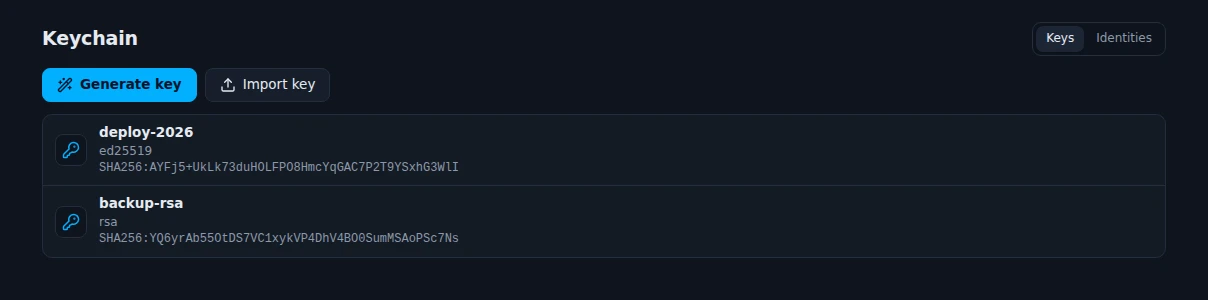
- Generate key makes an Ed25519, ECDSA or RSA key, with a passphrase if you want one.
- Import key reads a key file you already have, like
id_ed25519or a PuTTY key. - The menu on a key copies the public key, saves the private key as a file, or adds the key to a server: Add to a server logs in and puts the public key in
authorized_keysfor you.
Identities (the second tab) are saved logins: a username with a password or a key. Use one identity on many hosts, and change the password in one place.
Replace a key on many servers
Keys should be changed now and then. Replace on servers... in a key's menu does it safely:
- Pick the servers, and a new key (or let Tidegate make an Ed25519 key).
- Tidegate logs in to each server, adds the new key and tests that it works.
- Only then is the old key removed from that server.
If the test fails on a server, the old key stays there. Nobody is locked out.
SSH agent and security keys
- SSH agent. A host can use the keys in your agent: the Windows OpenSSH agent, Pageant, or the agent in
SSH_AUTH_SOCKon macOS and Linux. - Security keys. On Windows, YubiKeys and other FIDO2 keys work for SSH logins (
sk-ssh-ed25519andsk-ecdsakeys), through Windows itself.
Known hosts
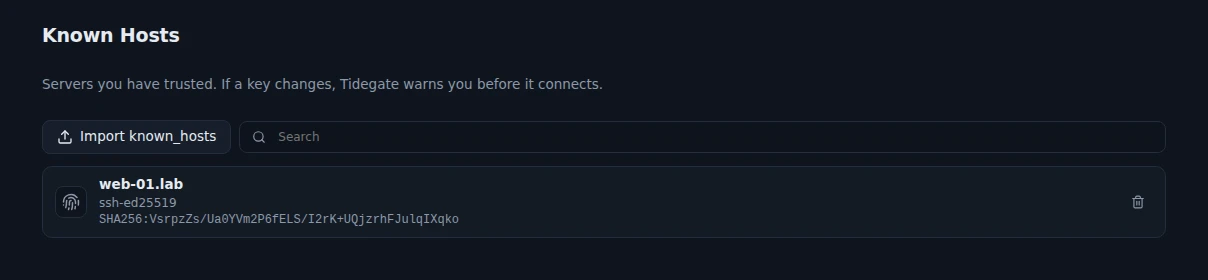
Every server you trust is listed here with its key fingerprint. Remove one to be asked again next time. Import known_hosts reads an OpenSSH known_hosts file. A host is never kept with two different keys.
SSH certificates
With many servers, adding your key to each one gets old. SSH certificates fix that: each server trusts one CA line, and the CA signs your key.
Turn it on under Settings, Security, SSH certificates. Tidegate then keeps its own CA key in the vault. For each login it makes a new key and signs it for a few minutes only. Tidegate shows the lines to add on a server (TrustedUserCAKeys), but never runs them itself.
Each host opts in with Log in with a Tidegate certificate under Advanced. The certificate is tried first. If the server does not trust it, the normal key or password is used.
The 2FA app
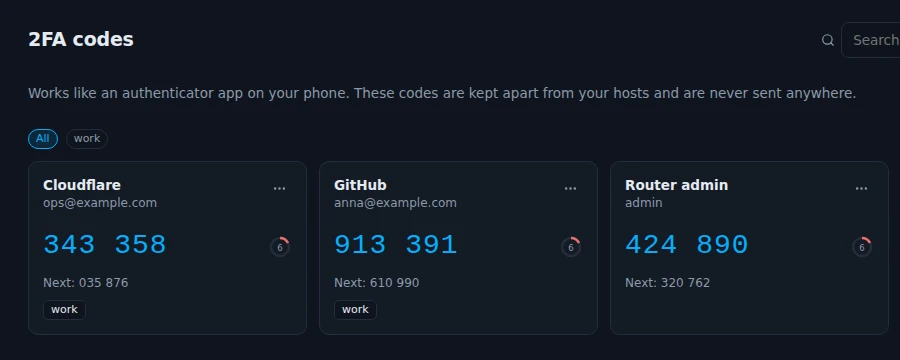
The 2FA codes page works like Google Authenticator. It is kept apart from your hosts, and the codes are made on your computer. Nothing is sent anywhere. Add a code with:
- Scan. A see through frame opens. Drag it over a QR code anywhere on your screen.
- Enter key or link, for the secret or an
otpauth://link. - QR code from the clipboard or from an image file.
- Google Authenticator export link, to move all your codes at once.
Each code can have tags, a note and backup codes. Showing the secret or its QR code again needs your master password.
For SSH servers that ask for a code, put the secret on the host instead (the 2FA secret field). Tidegate then answers the question for you.