Docs / Terminal and SSH
Terminal and SSH
Most of your time in Tidegate is spent in a terminal. This page covers connecting, the terminal itself and the helpers around it.
The connect screen
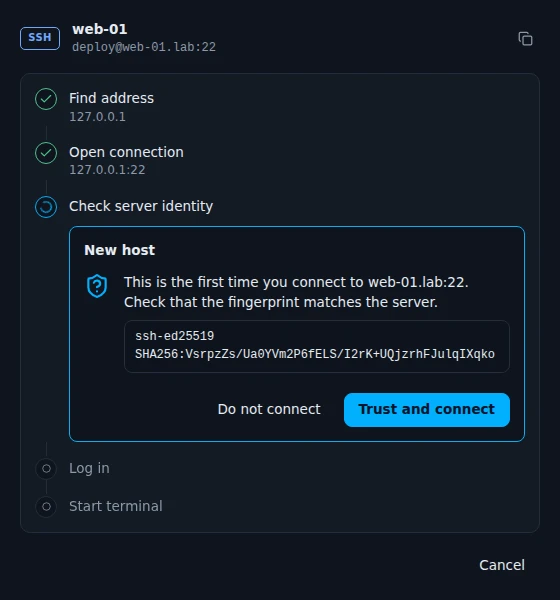
When you connect, Tidegate shows each step: find the address, open the connection, check the server's identity, log in and start the terminal. Passwords and 2FA codes are asked for in the same place. If a step fails, it says what went wrong in plain words, and Copy log gives you the details.
Host keys
Every SSH server has a key that proves it is the same server as last time. Tidegate checks it on every connection, also for jump hosts, tunnels, file views and Docker.
- A new server shows its fingerprint. Compare it with the server if you can, then click Trust and connect.
- A changed key shows a clear warning and asks twice. A changed key can mean the server was reinstalled, or that someone is in the middle.
- Strict mode (Settings, Security, Block changed host keys) refuses changed keys until you remove the old one under Known Hosts.
All trusted keys are listed on the Known Hosts page. You can import a known_hosts file there.
The server info bar
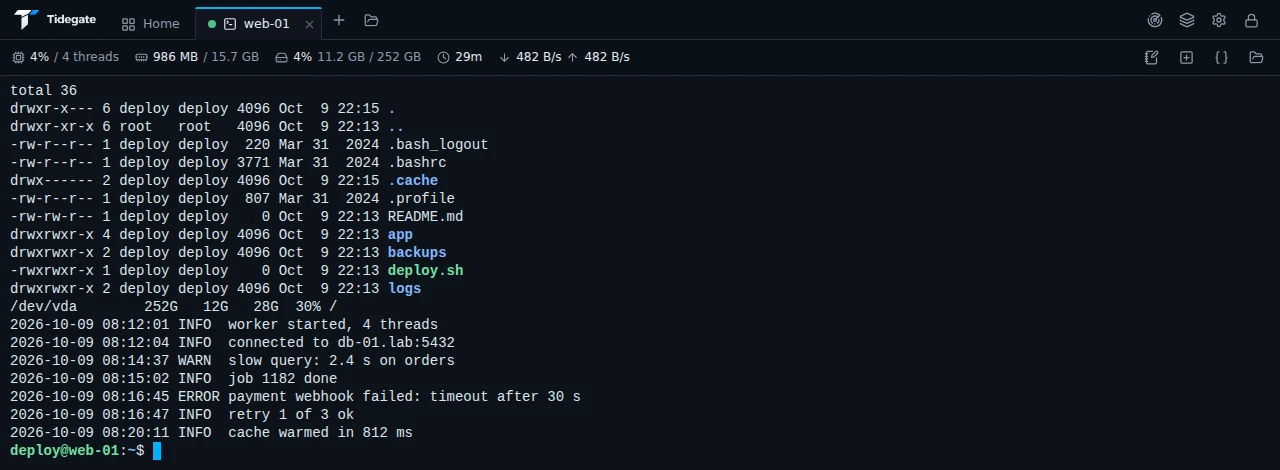
On SSH tabs a thin bar shows CPU use and threads, memory, disk use of /, uptime and network speed. It reads them over the same connection every few seconds. You can turn it off under Settings, SSH and SFTP.
The buttons on the right of the bar are Notes for this host, Split, Snippets and Open SFTP. Open SFTP uses the same connection, so there is no second login.
Split view
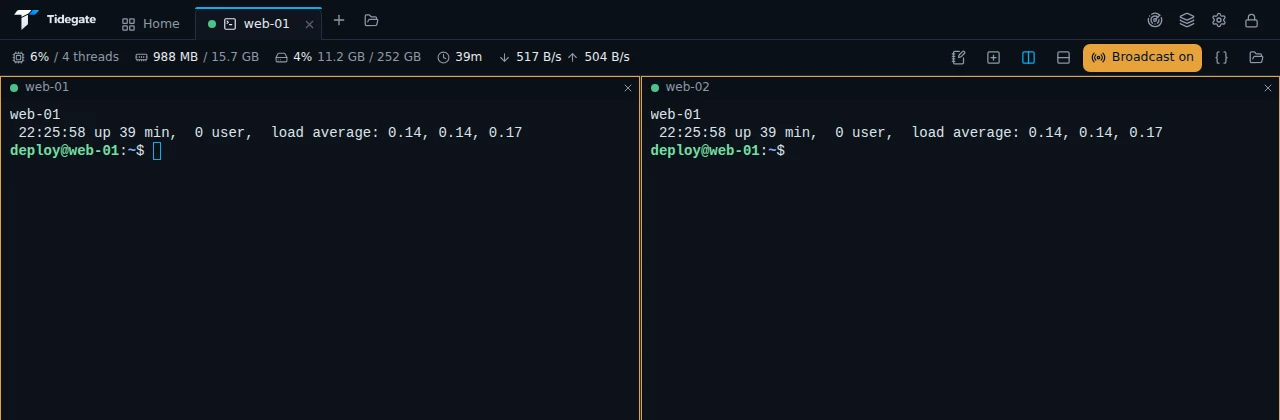
Click Split to add a pane. One tab holds up to four terminals, side by side or stacked. Each pane can be a different host.
Broadcast sends what you type to every pane at once. Handy for running the same update on a few servers. An orange "Broadcast on" label shows while it is on.
Snippets
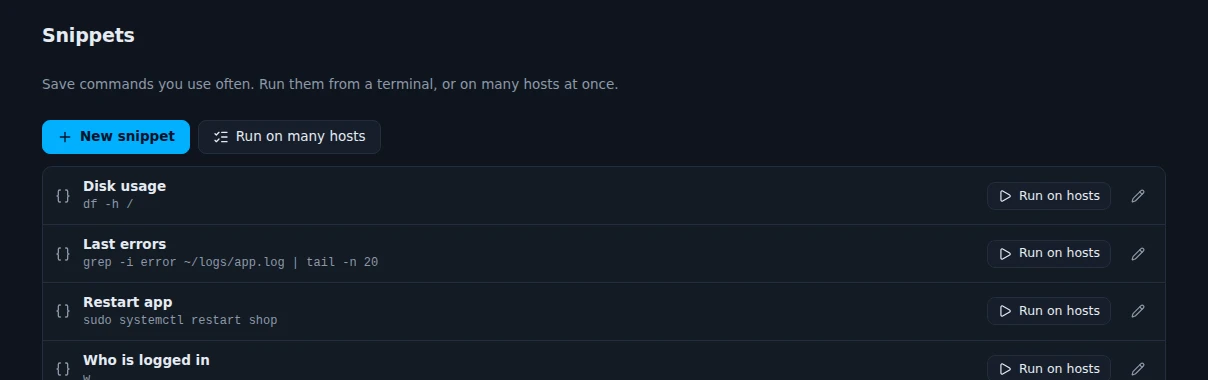
Snippets are commands you use often. Make them on the Snippets page, then run them from the Snippets button on a terminal. Snippets marked "Show as a button" also appear in a bar under every terminal (Settings, Advanced).
A host can run one snippet right after login. Set it in the host's Advanced options.
Local terminals, serial and Telnet
- Local terminal on Hosts opens a shell on your own computer: PowerShell, cmd, WSL or Git Bash on Windows, and your own shell on macOS and Linux.
- Serial lists the serial ports it finds (COM ports on Windows,
/dev/ttyUSB0and the like elsewhere). Pick the speed and connect. Save profiles you use often on the Serial page. - Telnet is there for old gear. Telnet sends everything in plain text, passwords too, so use SSH where you can.
Copy and paste
Pick how copy and paste work under Settings, Copy and paste:
- copy when you select text,
- Ctrl+C copies when text is selected, or Ctrl+Shift+C always,
- Ctrl+V, Ctrl+Shift+V or Shift+Insert to paste,
- right click to paste, or to open a menu.
Pasting many lines at once asks first, so a long clipboard never runs by accident.
Colors, highlighting and suggestions
Under Settings, Colors and highlighting you pick a color scheme and the words to color. By default errors are red, warnings yellow and "ok" or "active (running)" green. You can add your own rules.
Command suggestions are off by default. Turn them on under Settings, Terminal: a gray suggestion appears after a short pause, and the right arrow key takes it. Suggestions learn from the commands you run on each host. That history is kept encrypted in the vault, and you can clear it.
Help for network gear
On Cisco IOS, Juniper Junos, MikroTik RouterOS, HPE Aruba and HPE Comware devices, Tidegate knows the commands. Suggestions follow the mode you are in, and short forms like sh ip int br work.
A small chip on the terminal opens a panel that asks what you want to do, like set an interface's VLAN, and builds the commands. It shows exactly what will be typed, and nothing is sent before you click. Turn it off under Settings, Terminal.
Workspaces, recordings and logs
- Workspaces (the stack icon at the top) save the open tabs, so you can open the same set of servers again with one click.
- Recordings. Turn on Record SSH sessions under Settings, App and tools. Each recording is encrypted like the vault, and you play it back from the Logs page.
- Logs lists every connection: when, where, and how it went. It is stored encrypted, like everything else.
Advanced terminal features
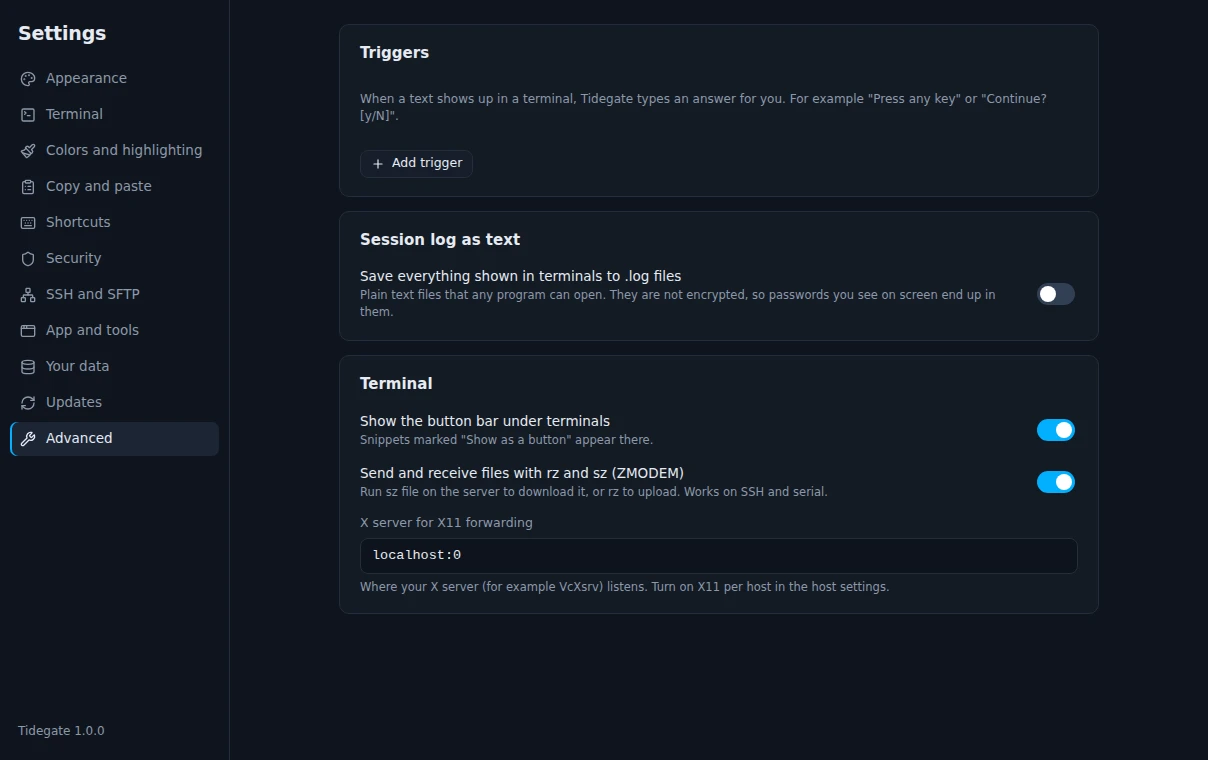
- Triggers answer prompts for you. When a text like "Press any key" shows up, Tidegate types the answer. They never fire on your own typing and never run anything on your computer.
- Session log as text saves terminal output to plain
.logfiles in a folder you pick. These files are not encrypted. - ZMODEM. Run
sz fileon the server to download, orrzto upload, right in the terminal. - X11. Where your X server listens, for hosts with X11 forwarding on.