Docs / Tools
Tools
Next to terminals and files, Tidegate has tools for the jobs that come with running servers and network gear.
Port forwarding
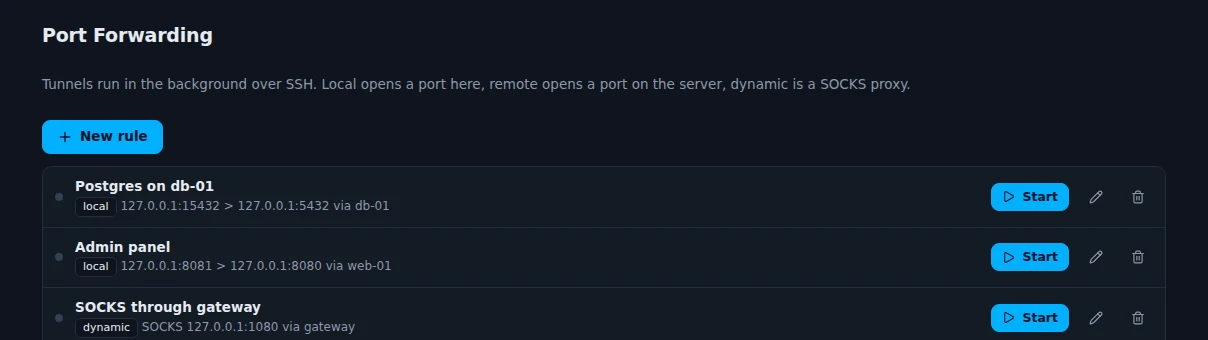
- Local opens a port on your computer that leads to the server side. Example:
127.0.0.1:15432to Postgres on db-01. - Remote opens a port on the server that leads back to you.
- Dynamic is a SOCKS proxy. Point your browser at it to browse from the server's network.
Start and stop each rule with its button. A rule can start by itself when you unlock Tidegate.
Overview of many servers
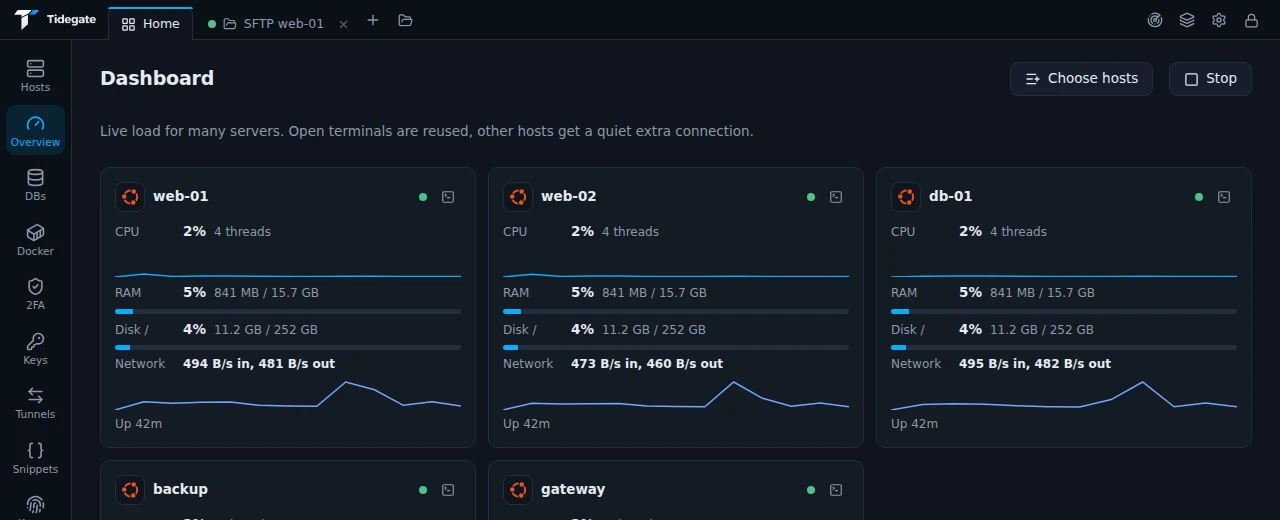
The Overview page shows CPU, memory, disk and network for the servers you choose. Click Choose hosts, then Start watching. Servers with an open terminal reuse that connection. The others get a quiet extra connection that stops when you click Stop.
Run a command on many hosts
Click Run on many hosts on the Snippets page, or right click a group and pick Run command on group. Type a command or pick a snippet, choose the hosts and run. Each host's answer shows on its own, so you can see which one failed.
Docker
Open Docker from a host's menu, or add a Docker connection on the Docker page. Tidegate talks to Docker over SSH, or to a Docker API address with TLS.
- Containers, images, volumes and networks in one place.
- Start, stop, restart, pause and remove containers. Read their logs and live usage.
- Open a shell in a container in a terminal tab.
- Run a new container or pull an image from a dialog.
The Docker API gives full control of the server. Actions that delete something show exactly what will happen and ask first.
Databases
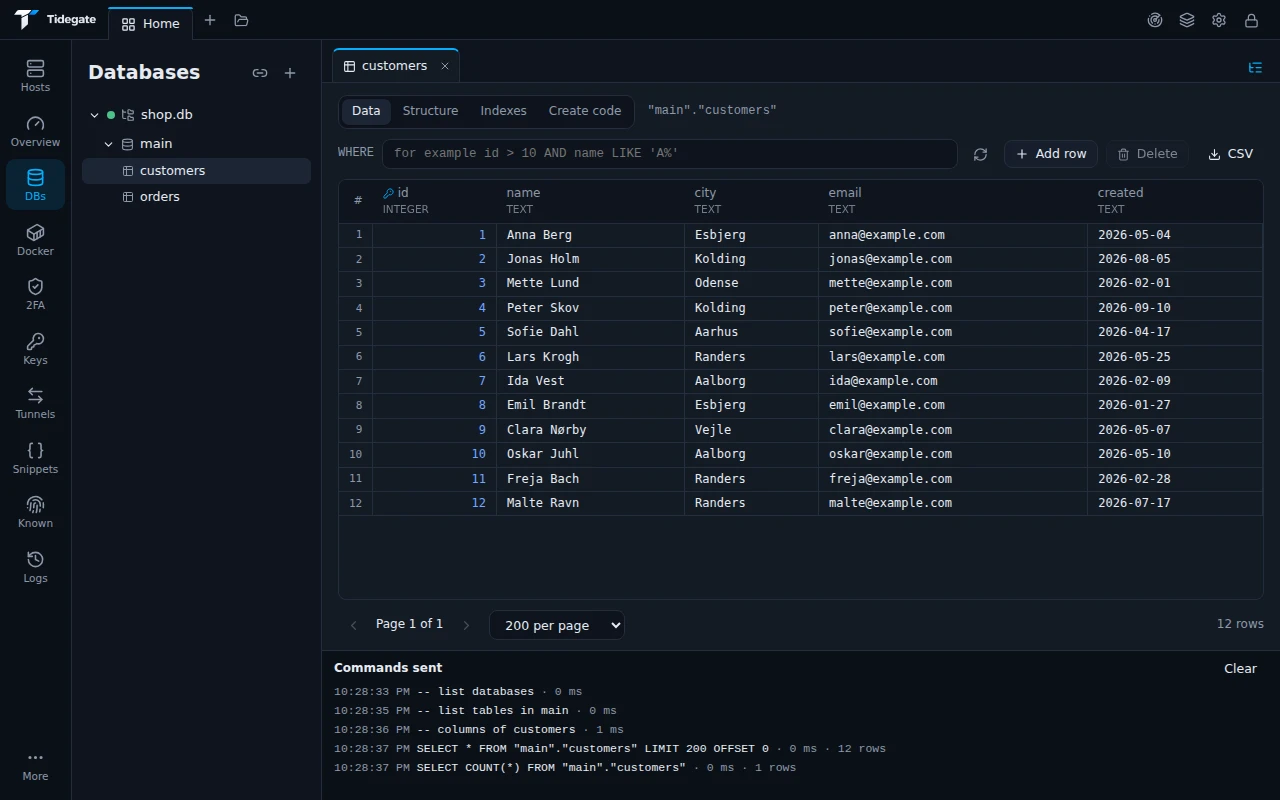
MySQL, MariaDB, PostgreSQL, SQLite and MongoDB. Connect directly or through an SSH host.
- Browse tables, edit rows, change columns and indexes, and see the code that creates a table.
- Run your own queries in a query tab.
- Every command Tidegate sends is listed under the table, so nothing happens behind your back.
- Changes that delete something show the exact statement first.
- A connection can be read only. Then writes are blocked by Tidegate and by the server session.
Paste a connection string like postgres://user@host/db or mongodb+srv://... to fill in a connection, or to connect once without saving anything. Such a connection is forgotten when Tidegate locks.
Network tools
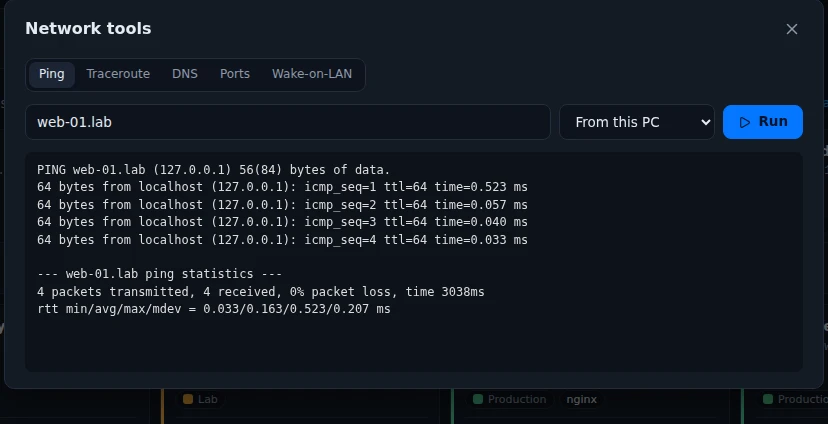
Open Network tools with the radar icon at the top, or from a host's Tools menu. Run ping, traceroute, a DNS lookup, a port check or Wake-on-LAN, either from this computer or from one of your servers. Running from a server is handy when the address is only reachable from inside its network.
Open ports
Open ports in a host's Tools menu lists the ports the server listens on, read from the server itself with ss or netstat. It shows the program behind each port and whether it listens on all networks or only on the server. Testing the ports from your computer is a separate choice you turn on.
Wake-on-LAN
Put a host's MAC address under Advanced, Wake-on-LAN. Then Wake up in its Tools menu sends the magic packet to your local network, or to the broadcast address you set.
Configuration backups
For routers and switches: Configuration backups in a host's Tools menu logs in, reads the running configuration and keeps a new version only when something changed. Lines that change every time, like "Last configuration change", are ignored.
- Up to 50 versions per device, encrypted and kept on your computer.
- Compare with the version before shows what changed.
- Daily backups are off until you turn them on for a device.