Docs / Security and your data
Security and your data
Everything you save in Tidegate stays on your computer, in one encrypted file. There is no account and no cloud. This page explains how that works and how to keep your data safe.
The vault
Hosts, addresses, usernames, passwords, keys, 2FA secrets, snippets, notes, known hosts, logs, command history, and Docker, Proxmox and database logins all live in one file: the vault.
- The vault is encrypted with AES-256-GCM.
- The key comes from your master password through Argon2id with 128 MiB of memory and 4 passes. That makes guessing passwords slow, even on fast hardware.
- The only plain file is
settings.json, with things like theme and font size. It never holds a secret.
Keys and 2FA codes you chose to keep on this computer are also locked to your user account (with Windows DPAPI, the macOS Keychain or the Linux keyring), and left out of exports.
Ways to unlock
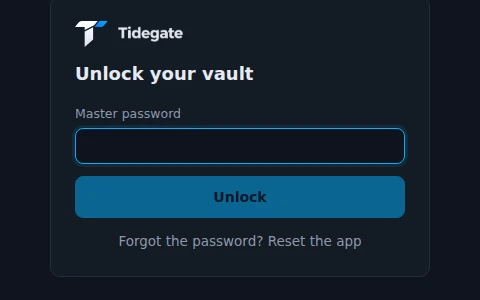
The master password always works. Faster ways can be added under Settings, Security, Unlocking:
- Windows Hello. Face, finger or PIN. The vault key is locked with a key in your PC's TPM, so a copy of the file is useless elsewhere.
- Security key. A YubiKey or other FIDO2 key with a PIN, on Windows.
- Touch ID on a Mac. Without an Apple developer certificate it cannot use the Secure Enclave, so the key sits in your Keychain and only opens after Touch ID says yes. That stops a person at your Mac, but not a program that already runs as you.
- Open without a password on this PC. Off by default. Tidegate opens by itself when it starts, but still locks as usual after that.
You can also run without a master password at all. Then a recovery code is the vault's secret, and a passkey unlocks it each day. The recovery code is needed to export, to restore a backup and if every passkey is lost.
Locking
- Tidegate locks after 15 minutes without use, and when your computer locks or sleeps. Change the time under Settings, Security.
- It can also lock when minimized.
- Press Ctrl+Shift+L or click the lock at the top to lock now.
- Open sessions keep running behind the lock screen.
- Hide from screen recording makes screenshots and screen sharing show a black window.
Backups
Tidegate saves a copy of the encrypted vault once a day when you unlock, and keeps the last 10. Find them under Settings, Your data. Back up now makes one right away, and Restore backup goes back to one. Before a restore, the current state is saved too, so a restore can be undone.
Moving to a new PC
- On the old computer, open Settings, Your data and click Export. Enter your master password.
- Copy the
.tidegatefile to the new computer. - Install Tidegate there, pick Import from another PC, choose the file and enter the password.
The export is encrypted and holds your settings too. Export always needs the master password or recovery code, never just a passkey.
Importing into a Tidegate that already has data asks whether to bring the settings, and what to do with a host that is already there: keep both (the new one gets "(2)" after its name), overwrite, or skip.
Sync between your computers
Off by default. Under Settings, Your data, Sync with your other PCs keeps hosts, keys, snippets and the rest the same on several computers, through a folder you pick: OneDrive, Dropbox, Syncthing or a network share.
- Each computer writes only its own file in that folder, encrypted with a key that is locked with a sync password.
- Tidegate never talks to a server for this. The folder app moves the files.
- Keys and 2FA codes that must stay on one computer are never synced. Settings are not synced either.
Where your data lives
| System | Folder |
|---|---|
| Windows | %APPDATA%\Tidegate |
| Windows, portable | the data folder next to Tidegate.exe, if it exists |
| macOS | ~/Library/Application Support/Tidegate |
| Linux | ~/.config/Tidegate |
If you forget the password
There is no way around the master password. That is the point: nobody else can get in either. If you forget it, click Reset the app on the lock screen and start again, then import an export if you have one.
Delete everything under Settings, Your data removes the vault, settings, backups, recordings and logs from this computer. Uninstalling asks if your data should go too. Updates never delete data.
Updates
Tidegate does not look for updates until you say yes. Then it asks api.tidegate.net for the newest version when it starts and every 2 minutes. The request holds nothing about you, your hosts or your data.
- Every release is signed. Tidegate checks the signature and the file before it installs anything.
- On Windows and with the AppImage, an update usually downloads only the parts that changed, often a few MB instead of the whole file. Turn that off under Settings, Updates if you want the whole file each time.
Read more in the privacy page.