Docs / Virtual machines
Virtual machines
Tidegate shows the virtual machines and containers on a Proxmox VE server. You can turn them on and off, and change their name, CPU and memory, without opening the Proxmox web page.
What you can do
The Virtual machines page lists every VM and container in the cluster, grouped by node. Each row shows the status, how long it has been running, CPU use and memory.
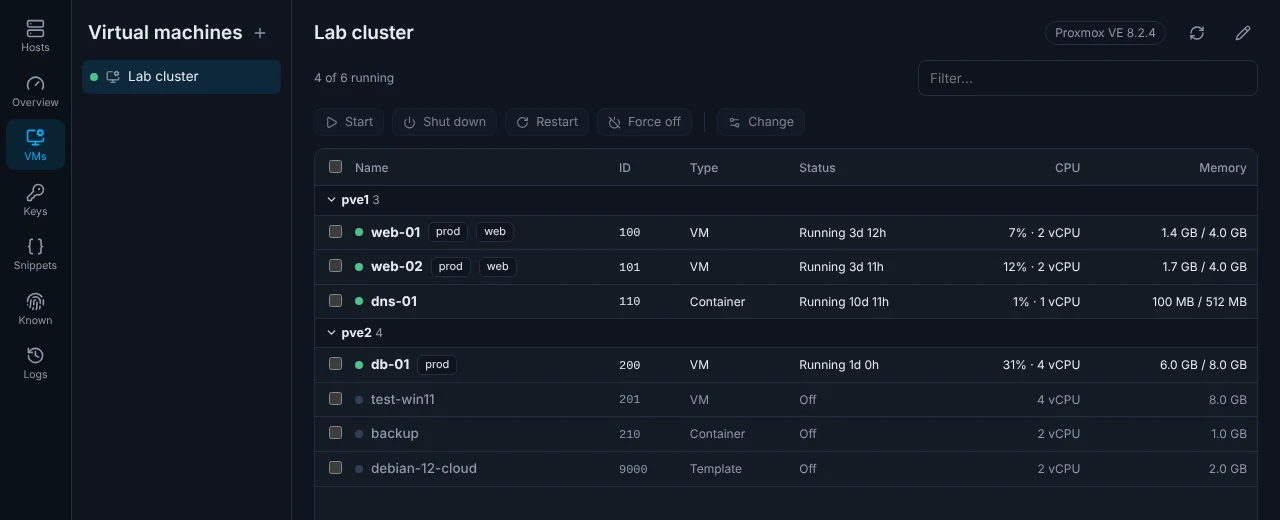
- Start, shut down, restart or force off one machine or many at once.
- Change the name, the number of CPU cores, the memory, the notes, and whether the machine starts with the server.
- Filter the list by name, ID or tag.
The list updates by itself every few seconds while the page is open. Templates are shown, but cannot be started.
Tidegate works with Proxmox VE. VMware vCenter and ESXi are not supported yet.
Make an API token in Proxmox
Tidegate logs in with an API token, not with your password. A token is a separate key that only has the rights you give it, and you can delete it at any time without changing your password.
Open the Proxmox web page (https://your-server:8006) and log in as an admin.
- Make a user for Tidegate. This step is optional, but safer than using
root. Go to Datacenter, Permissions, Users and click Add. Typetidegateas the user name, pick the realm Proxmox VE authentication server, and click Add. Proxmox asks for a password for the user. Type a long random one, since Tidegate does not need it. The user is now calledtidegate@pve. - Make the token. Go to Datacenter, Permissions, API Tokens and click Add. Pick the user, type a token ID like
desk, and leave Privilege Separation checked. Click Add. - Copy the secret. Proxmox now shows the token ID (
tidegate@pve!desk) and a secret that looks likexxxxxxxx-xxxx-xxxx-xxxx-xxxxxxxxxxxx. Proxmox shows the secret only once, so copy it now. - Give the rights. Go to Datacenter, Permissions and click Add. Add the same role twice: once as User Permission for
tidegate@pve, and once as API Token Permission fortidegate@pve!desk. A token with Privilege Separation can never do more than its user, so both need it. Use these values:- Path:
/for every machine, or/vms/100for only machine 100. - Role:
PVEVMUserto turn machines on and off, orPVEVMAdminto also change them. - Propagate: checked.
- Path:
Give the token only what you need. If you only want to turn machines on and off, PVEVMUser is enough.
Add the server in Tidegate
The page is hidden until you turn it on. Pick Virtual machines when Tidegate asks what you want in the left side on first start, or later under Settings, Appearance.
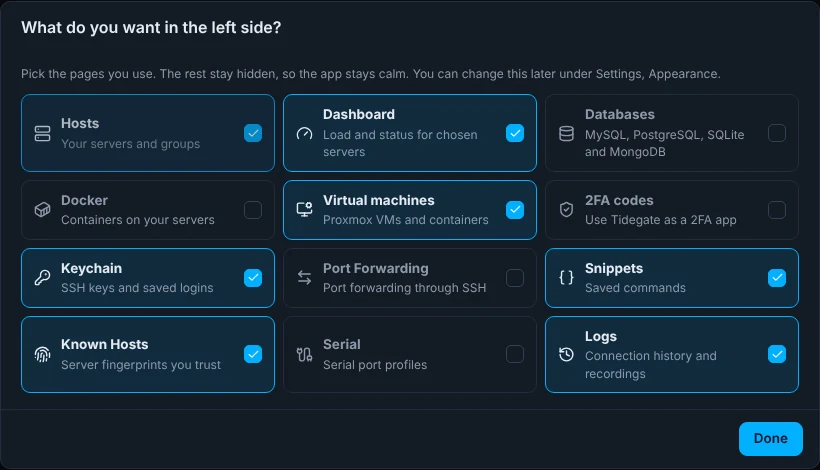
- Click VMs in the left side.
- Click Add Proxmox server, or the plus next to the title.
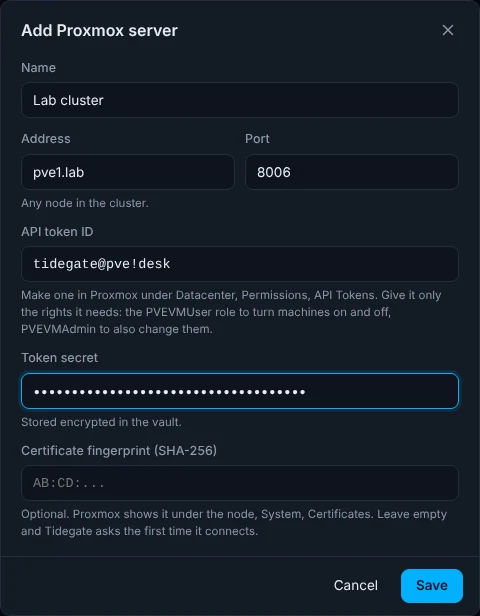
- Fill in the fields:
- Name: anything you like. Empty uses the address.
- Address and Port: any node in the cluster. The port is
8006unless you changed it. - API token ID: the full ID, like
tidegate@pve!desk. - Token secret: the secret you copied.
- Certificate fingerprint: optional. See the next part.
- Click Save. Tidegate connects right away.
Check the certificate
Proxmox makes its own certificate when it is installed, so no public authority vouches for it. The first time you connect, Tidegate shows the certificate's fingerprint and asks if you trust it, the same way it does for a new SSH server.
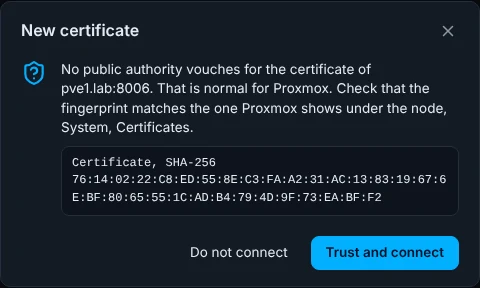
Compare it with the fingerprint Proxmox shows. Click the node, then System, Certificates, and open pve-ssl.pem. Or run pvenode cert info on the server. If they match, click Trust and connect.
- Your token is only sent after the certificate is trusted.
- Tidegate remembers the fingerprint. If it changes later, Tidegate warns in red and asks again. With strict host key checking on, it refuses.
- You can also paste the fingerprint in the server settings before you connect. Then Tidegate does not ask.
- A certificate from a public authority, like Let's Encrypt, for the name you typed passes without a question.
Start, shut down and restart
Check one or more rows and use the buttons above the list, or right-click a row.
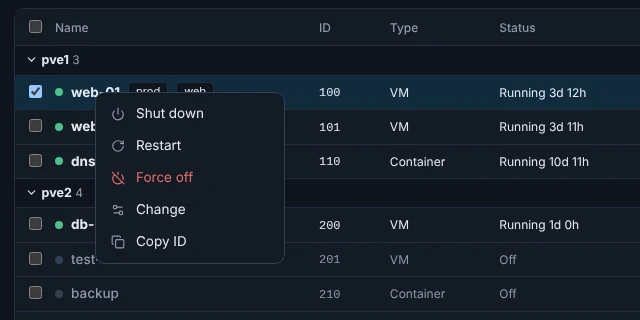
- Start turns the machine on.
- Shut down and Restart ask the system inside to do it, like pressing the power button once. Most systems react to this.
- Force off turns the machine off at once, like pulling the power cable. Data that was not saved inside the machine is lost.
Every action except Start shows the machines it will touch and asks first. If Proxmox refuses, for example because a backup holds a lock on the machine, Tidegate shows the reason.
Change a machine
Double-click a machine, or pick Change in its menu.
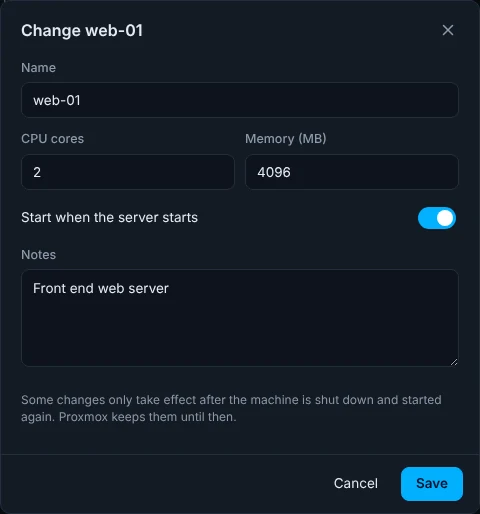
- The name may only hold letters, digits, dots and dashes. For a container it is the host name.
- For a container, 0 cores means no limit.
- Only what you changed is sent. If someone else changed the machine since you opened the dialog, Proxmox refuses, so nothing is overwritten by mistake.
- On a running machine some changes, like CPU and memory, only take effect after it is shut down and started again. Proxmox keeps them until then.
What Tidegate keeps
- The token secret is stored in the encrypted vault, like every other password. It is never shown again after you save it.
- Tidegate only talks to the address you typed, and only while the page is open.
- Each connection is written to Logs, without the token.
- To stop Tidegate's access, delete the token in Proxmox under Datacenter, Permissions, API Tokens.